> For the complete documentation index, see [llms.txt](https://panduan-sap.simplidots.id/llms.txt). Markdown versions of documentation pages are available by appending `.md` to page URLs; this page is available as [Markdown](https://panduan-sap.simplidots.id/mobile-application/sfa-sales-force-automation/beranda/faktur-penjualan/cara-membuat-faktur-penjualan.md).
# Cara Membuat Faktur Penjualan
Jika terdapat pelanggan yang ingin membuat faktur penjualan, Anda dapat menggunakan fitur Faktur Penjualan sebagai berikut.
**Step 1.** Buka menu **Beranda**.
**Step 2.** Pilih **Faktur** **Penjualan**.
**Step 3.** Klik **Buat Faktur Fenjualan** atau klik **+.**
**Step 4.** Pilih **Pelanggan**.
**Step 5.** Pilih nama pelanggan.
Jika ingin menambah dokumen foto silakan pilih **Ambil foto,** jika tidak, pilih **Nanti**.
**Step 6.** Tentukan jenis **Waktu Pembayaran.**
**Step 7.** Pilih **Tambah Item.**
**Step 8.** Cari item produk yang dipesan oleh pelanggan.
Contoh: Susu Evaporasi
**Step 9.** Isi jumlah kuantitas item yang dipesan.
Contoh : 5 DUS
**Step 10.** Tambah **Catatan** bila perlu. Lalu klik **->.**
**Step 11.** Lakukan langkah yang sama seperti **Step 8 hingga Step 10** untuk item produk lainnya.
**Step 12.** Kemudian klik **-> .**
**Step 13.** Pilih **Simpan** atau **Lanjutkan Pembayaran** jika ingin dibayar sekaligus.
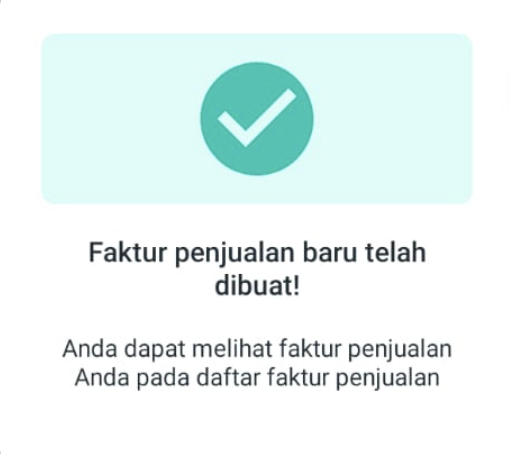
Faktur telah berhasil tersimpan jika muncul pop up berikut.
**Step 14.** Kemudian akan terbentuk 1 dokumen faktur penjualan dan proses pembayaran akan berlanjut seperti berikut. Isi **total pembayaran** sesuai yang dibayarkan oleh pelanggan. Lalu klik tanda **->.**
Pembayaran berhasil dilakukan jika muncul popup berikut.
**Step 15.** Lakukan [**Sinkron Transaksi dan Master Data**](/mobile-application/sfa-sales-force-automation/beranda/sinkronisasi-data/cara-sinkron-transaksi-dan-master-data.md) agar pesanan terkirim ke backoffice SMH.
{% hint style="success" %}
**FYI**:\
Tanda bahwa faktur telah terkirim, dapat dilihat dari prefix (awalan) nomor dokumen yang telah berubah.\
\
Contoh : \
**INV-240405054105** (belum dikirim/sinkron) -> **SI-240400003** (sudah dikirim/sinkron)\

{% endhint %}